Activate on-chain
Activation is the moment your builder profile becomes visible on-chain. One transaction registers your profile with the treasury you set and adds every deployer-verified contract to your tracking list in the same call. Contracts verified through other methods are added by Sky Mavis after activation.
Activation is required before you can earn rewards. Until you activate, your contracts' activity is not counted, even if they're verified.
Prerequisites
- The connected wallet must equal the builder admin wallet on your profile.
- Enough RON in the admin wallet to cover gas; cost scales with the number of deployer-verified contracts in the call.
- Any verification status is fine. You can activate with zero or with still-pending contracts and finish verifying them later. In fact, Sky Mavis only adds alternative-method contracts after your profile is active.
Step 1. Open the activation panel
On the dashboard, scroll to the Activate for Proof of Distribution
panel and click Register on-chain.
Step 2. Review what's about to register
The activation dialog summarizes the transaction in three sections:
- Wallets. Your admin and treasury wallets. Confirm both are correct. Treasury can be changed later, admin too, but doing so on-chain costs another transaction.
- Registers now. Every deployer-verified contract that will be added in this transaction. Each one shows a green check, the contract name, and the contract address. A red X means the deployer proof failed a pre-flight check; the dialog tells you why. Resolve those before submitting (usually by re-running deployer verification on a wallet or key that matches what's on-chain).
- Sky Mavis registers later. Contracts verified by owner, access-control, Safe, or Sky Mavis manual review. They are submitted as a tracking request after the transaction confirms; Sky Mavis adds them to your tracking list within a few business days.
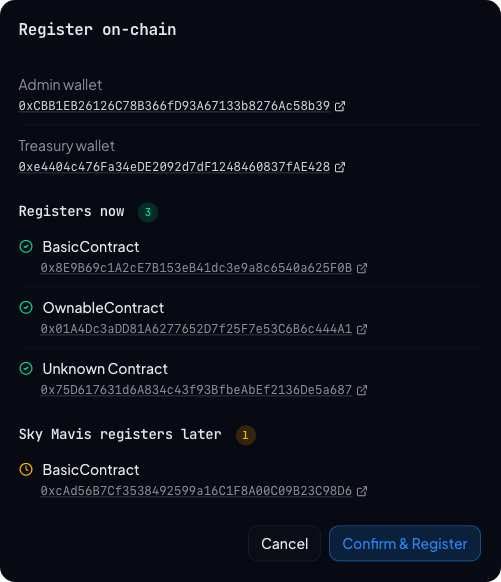
Click Confirm & Register when you're ready.
Step 3. Sign the transaction
A transaction request appears in your wallet. Confirm it. The
dashboard shows a Pending Tx strip with the explorer link until
confirmation.
Step 4. Confirm activation succeeded
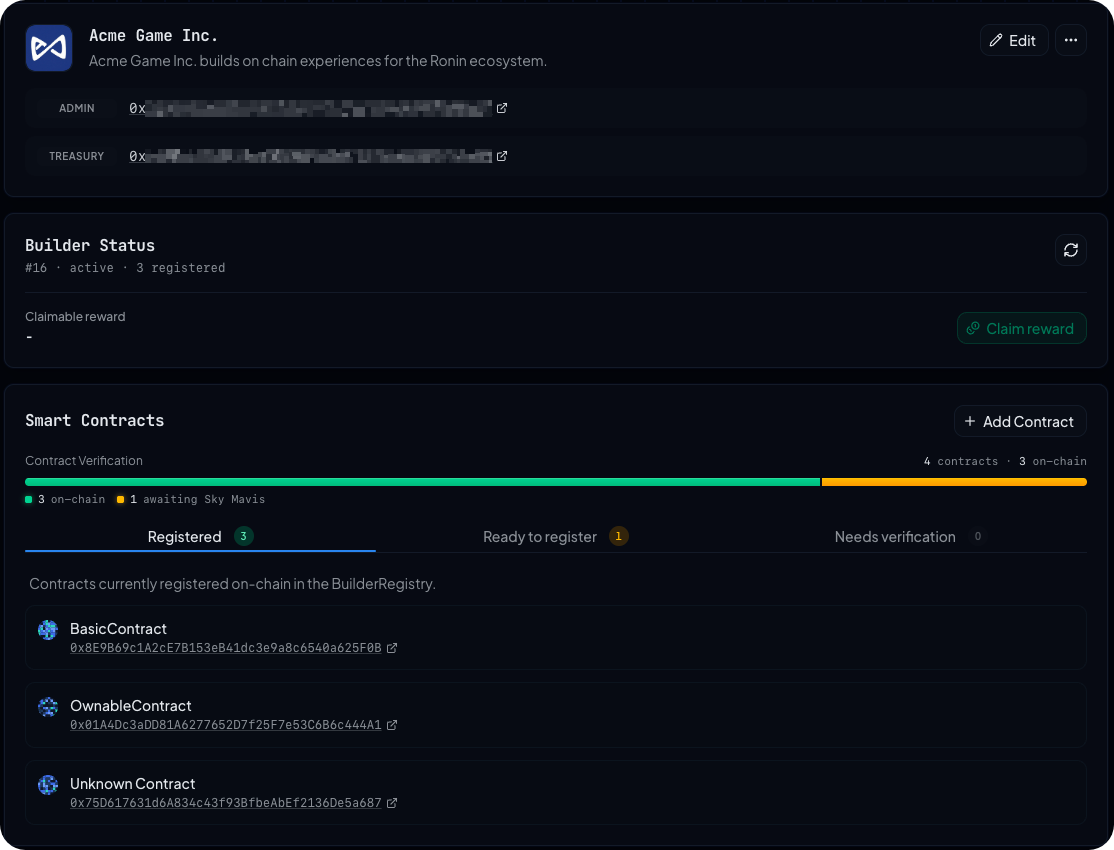
Once the transaction confirms, the dashboard reloads into the
post-activation view. The pre-activation Activate for Proof of Distribution panel disappears and a new Builder Status panel takes
its place with your builder ID and reward information. The Contracts
panel splits into three tabs:
- Registered. Deployer-verified contracts appear here immediately.
- Ready to register. Other-method contracts wait here with an
Awaiting registrationstatus until Sky Mavis adds them on-chain. - Needs verification. Anything you've added but not yet verified. You can keep adding and verifying contracts from here after activation.
Common errors
PROOF_INVALIDon a contract. The on-chain deployer for a deployer-verified contract differs from what was captured during verification. Re-verify and retry.AlreadyRegisteredrevert. This wallet already has a builder profile on-chain. The dashboard shouldn't let you reach activation in this state; if it does, refresh the page.NotOwnerorZeroAddressrevert. Your treasury wallet is unset or zero. Set a treasury inEdit Projectand retry.